

♥ Wishlist
Compare 51 verified USB Hubs and Docking Stations for Easy Device Connectivity products in Australia. Reviews, ratings, pros, cons and buying advice updated for October 2026.


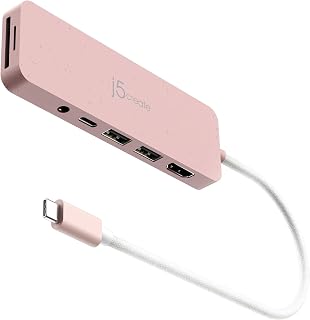


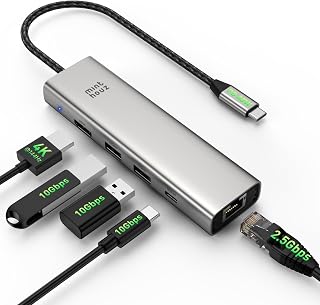


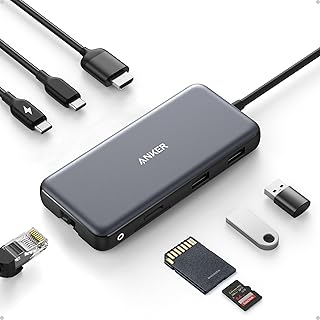


Choosing the right USB hub or docking station is less about buying the device with the largest number of ports and more about matching its connection standards, display support, power delivery, networking and storage features to your computer. A compact USB-C hub can be ideal for a laptop user who occasionally needs HDMI, USB-A and an SD card reader, while a full docking station makes much more sense for a permanent desk setup with monitors, Ethernet, external storage, peripherals and laptop charging.
For Australian buyers, it is also worth checking the exact model number, included power supply, Australian plug configuration, warranty terms, compatibility information and current retailer availability before ordering. Product names can be similar across generations, and specifications can differ significantly between apparently similar hubs.
The terms are often used interchangeably, but there is a practical distinction.
A small hub is normally the better choice for travel. A powered dock is generally more appropriate when you want to turn a laptop into a desktop-style workstation with one primary connection to the computer.
There is no single best USB hub for every Australian laptop owner. The strongest choice depends on the intended workload, computer, number of displays, peripherals and required charging power.
USB speed is one of the easiest specifications to misunderstand. A product may advertise multiple USB ports while those ports operate at different speeds.
Do not assume that every USB-C-shaped connector is equally capable. USB-C describes the physical connector; it does not by itself tell you the data rate, display capability or charging performance.
Power Delivery, commonly abbreviated to PD, allows a compatible hub or dock to pass power from a charger to the host laptop. A hub advertised with 100W PD, for example, does not necessarily deliver the entire 100W to the laptop. Some of the input power is used by the dock and its connected accessories.
Look for the distinction between PD input, maximum pass-through charging and actual host charging output. If your laptop requires substantial charging power, compare the dock's host-output specification with the computer manufacturer's recommended charger.
Some high-end docks are supplied with their own power adapter, while simpler portable hubs may expect you to provide a USB-C charger separately. This distinction can significantly affect the real cost of a setup.
Display support requires more investigation than simply counting HDMI ports. Check the supported resolution and refresh rate, the number of independent displays, the host operating system and the technology used to drive additional screens.
Apple Silicon Mac models also require special attention because display support varies between Mac generations and chip configurations. A dock that supports two displays on one computer may not provide two independent extended displays on another.
A wired Ethernet port can be valuable for home offices, gaming, video conferencing, large downloads, network-attached storage and environments where Wi-Fi is unreliable. Gigabit Ethernet remains adequate for many users, while 2.5GbE is more attractive if the computer, router or switch, cabling and internet or local network connection all support the higher rate.
Buying a 2.5GbE dock does not automatically make a Gigabit network faster. The entire network path needs compatible hardware.
Photographers, videographers and drone users should examine card-reader specifications rather than simply looking for an SD logo. Faster UHS-II card readers can be significantly more appropriate for transferring large media files than basic readers.
If you regularly move hundreds of gigabytes of photographs or video, a high-speed card reader can be one of the most valuable additions to a dock.
These technologies overlap, but they are not interchangeable labels.
USB-C is the connector format. A USB-C port can support different USB generations, charging capabilities and display functions depending on the computer.
USB4 provides a high-bandwidth connection architecture that can support data, display and other functions. However, USB4 implementations can differ, so buyers should examine the exact capabilities rather than relying on the USB4 name alone.
Thunderbolt 4 is a higher-spec connectivity standard with defined capabilities around bandwidth, displays and device connectivity. It is particularly compelling for users who want a single high-bandwidth connection between a laptop and a sophisticated desktop dock.
For everyday office peripherals, paying extra for Thunderbolt may not be necessary. For multiple high-resolution displays, fast external SSDs, professional storage and demanding workstation setups, the additional capability can be much more worthwhile.
Start with the accessories you already own instead of choosing a hub based on an impressive port-count headline.
Add one or two spare ports for future accessories. A hub that is already completely occupied can become inconvenient surprisingly quickly.
MacBook buyers should pay particular attention to external-display support. The number of physical video outputs on a dock does not guarantee the number of independent extended screens that a particular Mac can drive.
Also check whether the dock's Ethernet, audio, storage and display features work natively with your macOS version. Some devices may require software or firmware updates for particular functions.
CalDigit is a prominent option in the premium Thunderbolt category. Its TS4, for example, has 18 ports, up to 98W host charging, 2.5GbE and multiple Thunderbolt 4 connections. Its published specifications also distinguish display support between different Mac and Windows configurations, illustrating why compatibility should be checked at the computer level rather than assumed from the dock's headline specification.
Windows laptops offer a wide range of USB-C, USB4 and Thunderbolt implementations, so model-specific compatibility remains important. Check whether the laptop's USB-C port supports video output, the required USB generation and charging input.
For business laptops, also consider Ethernet, multiple displays, a stable power connection and compatibility with the computer's charging requirements. A dock can become the central connection point for a workstation, making reliability more important than simply maximising the number of inexpensive ports.
Brand reputation is useful, but it should never replace specification checking. Different product lines from the same manufacturer can target completely different users.
UGREEN's Australian range demonstrates why model-level comparisons matter. A compact Revodok model may concentrate on HDMI, USB and power delivery, while a more advanced Revodok Pro dock can add multiple display outputs, Ethernet and card readers. Another model may use DisplayLink to support a particular multi-display configuration.
For example, the UGREEN Revodok 106 is specified with multiple 10Gbps USB ports, 4K HDMI and 100W PD input, while the Revodok 1071 combines USB-A and USB-C connectivity with 4K HDMI, card readers and 100W-class pass-through charging. These are different products aimed at different connectivity requirements, despite belonging to the same broader family.
Likewise, the CalDigit TS4 is a desktop-class Thunderbolt dock rather than a simple travel hub. Its published specification includes three Thunderbolt 4 ports, three USB-C ports, five USB-A ports, DisplayPort, SD and microSD readers, 2.5GbE and audio connections.
DisplayLink-based docks can be useful when a computer's native display-output capabilities are insufficient for the number of monitors you want to connect. They can provide additional display flexibility through software-assisted video transmission.
However, DisplayLink should be treated as a specific technology with its own requirements rather than as a universal solution. Check operating-system compatibility, driver requirements, supported resolutions and refresh rates, and whether the intended workflow is suitable for the technology.
For ordinary office applications, web browsing and productivity, DisplayLink can be a practical option. For latency-sensitive workloads or applications where native display paths matter, investigate the connection architecture carefully before buying.
A common buying mistake is comparing docks solely by their advertised maximum PD number. A dock may accept a high-wattage USB-C charger but reserve some power for its own operation and connected devices.
When comparing products, record these three figures separately:
Also remember that the laptop itself determines how much power it can accept. A dock cannot force a computer to consume more power than its charging system supports.
If an external SSD is a major part of your workflow, pay attention to the upstream connection between the computer and the dock. Multiple devices sharing one upstream link can compete for available bandwidth.
For example, connecting an external SSD, Ethernet adapter and several other high-bandwidth devices to one hub does not mean every device can independently operate at its headline maximum simultaneously. The hub's internal architecture and upstream connection can become the limiting factor.
For professional media workflows, prioritise high-speed USB, USB4 or Thunderbolt connectivity and examine whether the dock provides the specific ports needed by your storage devices.
A good USB hub should be physically stable, especially when several cables are connected. Look for a robust enclosure, sensible port placement and a host cable that is long enough for the intended laptop position.
Metal housings can help with physical durability and heat dissipation, but enclosure material alone does not establish performance or reliability. High-bandwidth hubs and docks can become warm during sustained operation, particularly when several devices are connected at once.
For desktop docks, port placement is also a practical consideration. Frequently used USB ports, card readers and headphone connections are more convenient on the front, while permanent monitor, Ethernet and power cables are often better placed at the rear.
The cable between the computer and hub is part of the connection system. A USB-C cable may support charging but not the data rate, display mode or Thunderbolt capability required by the dock.
When two products look similar, compare them in this order:
The USB-C connector does not guarantee display output. Verify that the computer's port supports the required display functionality.
A 12-port dock is not automatically better than an 8-port model. Unused ports add cost and physical size without improving your setup.
Always look for the host charging figure. A headline such as “100W PD” can refer to the dock's maximum power input rather than 100W delivered to the laptop.
Multiple physical outputs do not automatically mean multiple independent displays. Host hardware, operating system limitations and display technology all matter.
A desktop dock without an appropriate power supply may require an additional purchase. Include the charger requirement when comparing overall value.
The weakest component in the connection chain can limit the system. Check the cable specification before diagnosing a dock as defective.
A dock may physically connect to Windows, macOS, ChromeOS, iPadOS or another platform while individual features behave differently. Read the compatibility notes for the exact host device.
For a typical home-office setup, prioritise dependable laptop charging, one or two display connections, Ethernet, several USB ports and a convenient desk layout. If the hub remains connected to the same peripherals every day, a powered docking station can be more convenient than repeatedly plugging individual accessories into a small portable hub.
A sensible office configuration might include a monitor connection, Ethernet, keyboard, mouse, webcam and external storage. If the laptop is also used away from the desk, a single-cable dock can reduce setup time when returning to the workstation.
Students generally benefit from portability and versatility rather than an expensive professional dock. A compact USB-C hub with HDMI, USB-A and USB-C can cover common needs such as connecting a presentation display, flash drive, keyboard or mouse.
If photography, video editing or engineering software is part of the workload, consider upgrading to a model with faster storage connectivity and better display support.
Creative users should prioritise sustained data transfer and reliable media-card connectivity. An SD or microSD reader is only useful if it supports the card format and speed required by the camera or other recording device.
For large media libraries, consider a dock with fast USB-C, USB4 or Thunderbolt connectivity. If an external SSD is connected through the hub, make sure the hub's upstream connection is fast enough to avoid unnecessarily restricting the drive.
Gamers may need a different feature balance from office users. A hub can be useful for a keyboard, mouse, headset, controller, Ethernet and external storage, but display requirements should be checked separately.
For high-refresh gaming monitors, verify the exact supported resolution and refresh rate rather than relying on a generic “4K” claim. A device capable of 4K output is not necessarily capable of 4K at the refresh rate your gaming display requires.
Dual-monitor buyers should start with the laptop's native display capabilities. Then determine whether the dock uses native Thunderbolt or USB display functionality, DisplayLink or another method.
On macOS, different Apple silicon generations and configurations can have different external-display limits. On Windows, laptop manufacturers can also impose hardware-specific restrictions. Therefore, a product listing's maximum display count should never be treated as a guarantee for every computer.
2.5GbE can be worthwhile for users transferring large files over a compatible local network, working with network-attached storage or using a suitably fast internet connection. For ordinary web browsing and many home-office workloads, Gigabit Ethernet may already be sufficient.
Consider the entire network: router or switch, Ethernet cabling, server or NAS, computer and internet service. If one major component remains limited to Gigabit Ethernet, a 2.5GbE dock may provide little practical benefit for that particular connection.
Some advanced docks can benefit from firmware updates, particularly where compatibility, USB performance, Ethernet behaviour or display support is involved. Before assuming a new dock is faulty, check the manufacturer's current support documentation and firmware information for the exact model.
Software-dependent display solutions such as DisplayLink may also require appropriate drivers. Keep operating-system and driver requirements in mind when evaluating a dock for a managed business computer where software installation may be restricted.
Check whether the laptop's USB-C port supports video, whether the dock's display output is compatible with the monitor, and whether the cable is suitable. If using DisplayLink, verify that the necessary software is installed and functioning.
Check the speed of the SSD, cable, dock port and host connection. A fast SSD connected through a 5Gbps port cannot achieve the same theoretical transfer capability as it could through a faster interface.
Check the dock's host charging output, power adapter rating and laptop requirements. Also verify that the USB-C charging connection is plugged into the designated power-delivery input where the dock has separate USB-C ports with different functions.
Reseat the Ethernet cable, test the cable directly with another device if possible, check operating-system network settings and review the dock manufacturer's support information for drivers or firmware requirements.
Some heat is normal during active operation, particularly with high-speed storage, networking, display output and charging all operating simultaneously. Place the dock on a hard, ventilated surface and avoid covering its ventilation areas.
Value should be measured against the features you will actually use. A simple hub with HDMI and several USB ports can be excellent value for a student or traveller, while a professional may save time and avoid additional adapters by choosing a premium Thunderbolt dock.
When comparing prices, account for the power adapter, required cables, display adapters and any software requirements. A seemingly inexpensive hub can become less attractive if additional accessories are needed to reproduce the functionality of a slightly more expensive dock.
Australian shoppers should compare the exact product variant rather than relying on photographs or generic international specifications. Check that the model is intended for the Australian market where relevant, particularly when a dock includes a mains power adapter.
Before purchasing, compare the current specifications from the manufacturer with the retailer listing. Check the exact model number, included accessories, warranty information, return conditions and current price. Retailer listings can occasionally group multiple variants under a similar product name.
For purchases through Amazon Australia or other Australian retailers, also distinguish between the manufacturer, retailer and marketplace seller. Those are separate considerations when evaluating support and after-sales arrangements.
A premium dock is easier to justify when it replaces several separate adapters and provides a single reliable connection for a permanent workstation. Professionals using multiple displays, high-speed storage, wired networking and numerous peripherals can benefit from a more capable connectivity platform.
For occasional HDMI output and a keyboard or mouse, however, a large premium dock may be unnecessary. Spend according to your actual workload rather than buying the most expensive specification available.
A compact hub is usually the better fit for travellers, students and laptop users who need occasional access to legacy USB-A accessories, external displays, memory cards or wired Ethernet.
Portability is the major advantage. A small hub can remain in a laptop bag and provide the connections that thin modern laptops often omit without adding the size and power requirements of a desktop docking station.
The best USB hub or docking station is the one that matches the capabilities of your computer and the accessories you actually use. Begin with your host laptop, not the hub. Confirm its USB-C, USB4 or Thunderbolt capabilities, determine how many displays it can genuinely support, identify your required charging power and then choose the port combination that fits your workflow.
For simple expansion, a compact USB-C hub from a reputable manufacturer such as Anker, UGREEN, Belkin or Satechi can be a sensible starting point. For a demanding workstation, compare higher-end solutions from brands such as CalDigit, Dell and Lenovo alongside the specifications of your computer.
Most importantly, compare the exact model numbers and technical specifications before purchasing. Port count, 4K support and 100W PD headlines are useful starting points, but they do not tell the complete story. The best buying decision comes from checking bandwidth, display architecture, charging output, compatibility, included power accessories and the practical layout of the dock.
There is no universal best model. A compact USB-C hub is generally more appropriate for travel and basic connectivity, while a powered USB-C, USB4 or Thunderbolt docking station is better for a permanent workstation. Compare the exact requirements of your laptop before choosing.
No. A laptop may have a USB-C connector but lack support for particular functions such as video output, high-speed USB or charging through that port. Always check the laptop's technical specifications.
They are not directly comparable because USB-C describes a connector while Thunderbolt 4 describes a connectivity standard. A Thunderbolt 4 dock can provide capabilities beyond a basic USB-C hub, but those additional capabilities are only valuable if your computer and peripherals can use them.
Some can. Look for USB Power Delivery support and check the actual host charging output. A hub's maximum PD input is not necessarily the same as the power delivered to the laptop.
Some can, but the answer depends on the computer, operating system, dock technology and display configuration. Multiple HDMI or DisplayPort connectors alone do not guarantee two independent extended displays.
It can be worthwhile if you regularly transfer large files or use fast external SSDs. For keyboards, mice, printers and similar peripherals, 5Gbps or even slower connectivity may be sufficient.
They can. The hub's port speed, upstream connection and internal bandwidth allocation can limit the performance available to an external SSD. Other connected devices may also share the available bandwidth.
A powered hub is more appropriate when you connect several peripherals, external storage or devices that require meaningful power. A basic unpowered hub can be sufficient for low-power accessories such as a keyboard and mouse.
No. DisplayLink is a display technology that can use USB connectivity and software, while Thunderbolt is a high-bandwidth connectivity standard. They solve different technical problems and should be evaluated according to the intended computer and display setup.
The number describes the advertised functions or ports, not overall quality. A 5-in-1 hub can be preferable if it contains exactly the ports you need, while a 10-in-1 model may be better for users requiring Ethernet, multiple displays, card readers and additional USB connectivity.
They can be, particularly for professional desk setups where multiple monitors, fast storage, Ethernet, charging and peripherals must work through one connection. If your needs are limited to occasional HDMI and USB-A expansion, a less expensive hub may be more appropriate.
There is no universal schedule. Check the manufacturer's support documentation when you first install the dock and whenever you experience compatibility, display, networking or performance problems. Apply firmware updates that are specifically intended for the exact model.
Specifications, compatibility, retailer availability and prices can change during 2026. Before making a purchase in Australia, verify the exact model number and current manufacturer specifications, then compare current retailer listings and customer feedback. A product that is ideal for one laptop may not provide the same functionality on another, so host-device compatibility should remain the final check before ordering.